These guidelines are designed to help online and hybrid heats run smoothly and ensure that every participant has an equal opportunity to perform at their best.
Before the Competition
Please add the date and time of the competition to your school calendar and ensure relevant colleagues and site staff are aware of where the event is taking place and when it will finish.
Consider working with another member of staff to support your students during the heat.
Create a positive team environment by ensuring participants are comfortable with the technology and can hear one another clearly.
Lead teachers will receive the Zoom meeting link, passcode and draw information via email at least two weeks before the competition. The Zoom heat will be hosted by an ESU Competition Lead, who will be available to provide technical support and guidance on the day.
Technology Requirements
Each participant's device must have:
We strongly encourage all competitors to use a laptop and avoid using a mobile phone wherever possible.
Laptops provide a more reliable internet connection, better audio and video quality, and a larger screen, helping competitors to fully engage with the competition and other participants.
As this is a speaking competition, it is imperative that competitors can be clearly seen and heard at all times. Using a laptop helps ensure the best possible Zoom experience for both competitors and judges. While tablets may be suitable in some circumstances, mobile phones should only be used as a last resort.
Zoom requires a strong and stable internet connection to work effectively. Please ensure that you join the meeting from a location with reliable Wi-Fi or, ideally, a direct ethernet connection.
We also recommend:
Plugging devices into a power source for the duration of the competition.
Checking camera positioning, lighting and audio settings before joining the meeting.
Connecting in an area without Zoom restrictions.
On the Day
Joining the Zoom Meeting
To join the call:
Click on the Zoom meeting link provided by the ESU.
If you are unable to download the Zoom client, simply select “Join from your browser” when prompted.
Enter in the provided numerical passcode.
You will automatically join the waiting room and be admitted into the meeting at 4:10pm by the ESU Competition Lead acting as Zoom Host.
Unless otherwise stated, all online participants are expected to join the Zoom meeting at 4:10pm to ensure a prompt start at 4:30pm. If you are not admitted to the meeting at 4:10pm, don’t panic! The Competition Lead may be assisting another school and will admit you by 4:25pm. If you are not admitted by 4:25pm, contact the ESU Competitions Team at 020 7529 1565.
Once admitted to the meeting, the Competition Lead will ask you to set your Zoom name (more information on this below) and check your device is working correctly.
Joining early is imperative as it allows the Competition Lead to set up each team and troubleshoot any technical issues.
During the Competition
All students must be accompanied by an adult throughout the Zoom heat in accordance with our safeguarding policy.
Cameras
Cameras should always remain on for all participants during the call unless otherwise instructed by the ESU Competition Lead.
Keeping cameras on allows the Competition Lead to confirm attendance and provides presenters with an audience, helping to recreate the experience of speaking in person.
Effective public speaking includes body language and gesture, which remain important in an online environment and will be considered by the judges.
Microphones
Unless speaking, all participants should have their microphones muted for the duration of the call. This includes audience members and judges.
This helps minimise background noise and ensures speakers can be heard clearly.
Zoom Etiquette
For safeguarding purposes, recording is disabled and prohibited. No participant should attempt to record, photograph or film the meeting using any device. Any safeguarding concerns may result in removal from the meeting.
Private Zoom chat is disabled. All messages sent via chat will be visible to all participants. The chat function should only be used if requested by the ESU Competition Lead or to raise technical issues.
Time signals will be provided in accordance with the competition rules.
Students are encouraged to present standing up where space and equipment allow.
Please ensure that anything visible on camera is appropriate for a competition setting.
Connectivity Issues
If connectivity is lost during the competition, try rejoining the meeting by:
Moving to a location with a stronger internet connection. Use a direct ethernet connection where available and make sure you are not in a space where Zoom is disabled.
Exiting out of the meeting, closing Zoom and reconnecting via the meeting link.
Ensuring your device is fully charged and connected to a power source.
The ESU Competition Lead will contact you directly to troubleshoot should you lose connection. They will use the email and mobile phone number you provided at registration.
Joining the meeting early and using a strong internet connection will help minimise disruption and give your students a smooth experience!
How to Change Your Zoom Name
Once you’ve been admitted into the meeting:
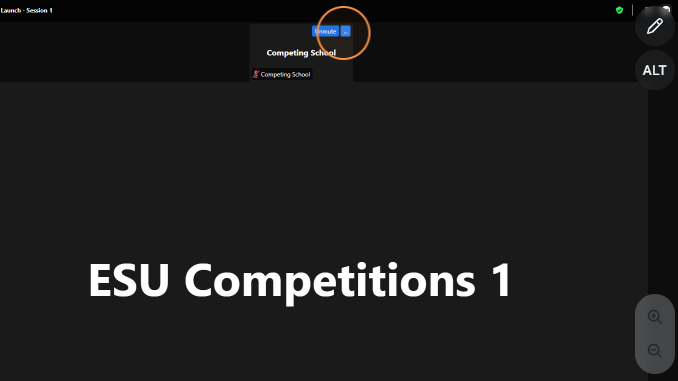
1. Hover your cursor over the right-hand corner of your video tile and select the three dots.
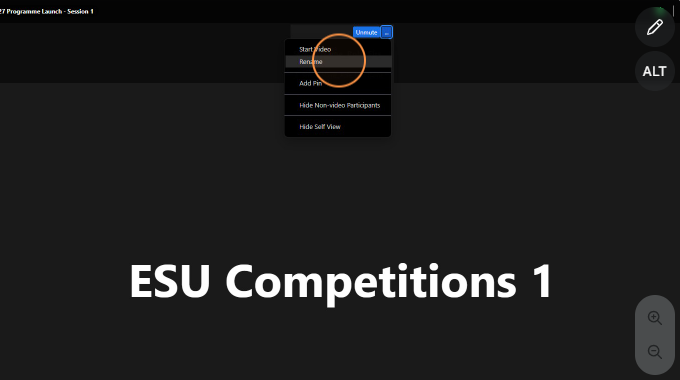
2. Select Rename.
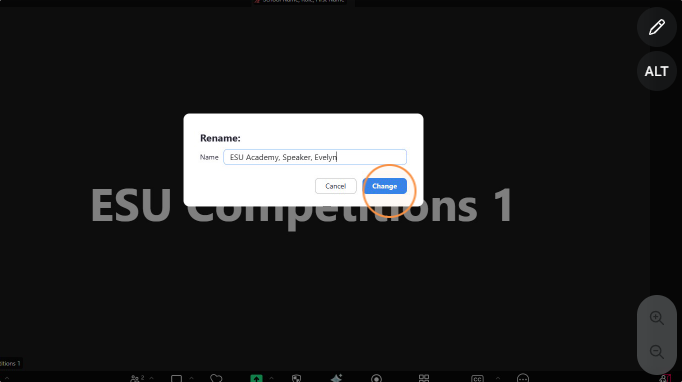
3. Enter your school name, role and first name. Click Change.
Need Support?
If you have any technical questions or experience issues on the day of the competition, please email competition@esu.org or give us a call at 020 7529 1565.
We look forward to welcoming you online and wish all competitors the very best of luck!